Use Pipelines-as-Code with GitLab Webhook #
Pipelines-as-Code supports GitLab through a webhook.
Follow the Pipelines-as-Code installation according to your Kubernetes cluster.
Create GitLab Personal Access Token #
Follow this guide to generate a personal token as the manager of the Org or the Project:
https://docs.gitlab.com/ee/user/profile/personal_access_tokens.html
Note: You can create a token scoped only to the project. Since the token needs to have
apiaccess to the forked repository from where the MR comes from, it will fail to do so with a project-scoped token. We try to fall back nicely by showing the status of the pipeline directly as a comment on the Merge Request.
Token Scoping for Fork-based Workflows #
When working with Merge Requests from forked repositories, the token scope affects how Pipelines-as-Code can report pipeline status:
Project-scoped tokens: Limited to the upstream repository, cannot access forks
- Status reporting will fall back to MR comments
- Most secure option but limited functionality
Organization/Group-scoped tokens: Can access multiple repositories including forks
- Enables status checks on both fork and upstream
- Requires broader permissions
Bot account tokens: Recommended for production (see troubleshooting section below)
- Minimal required permissions
- Clear audit trail
Working with Forked Repositories #
Pipelines-as-Code supports Merge Requests from forked repositories with an automatic fallback mechanism for status reporting:
Primary: Attempt to set commit status on the fork (source project)
- Appears in both fork and upstream UI if successful
- Requires: Token with write access to fork repository
Fallback: Attempt to set commit status on upstream (target project)
- Appears in upstream repository UI
- May fail if upstream has no active CI pipeline for this commit
Final Fallback: Post status as Merge Request comment
- Always works (requires MR write permissions)
- Same information as status checks, different presentation
This design ensures status reporting works even with restricted token permissions.
Visual Example:
Status checks appear in GitLab’s “Pipelines” tab:
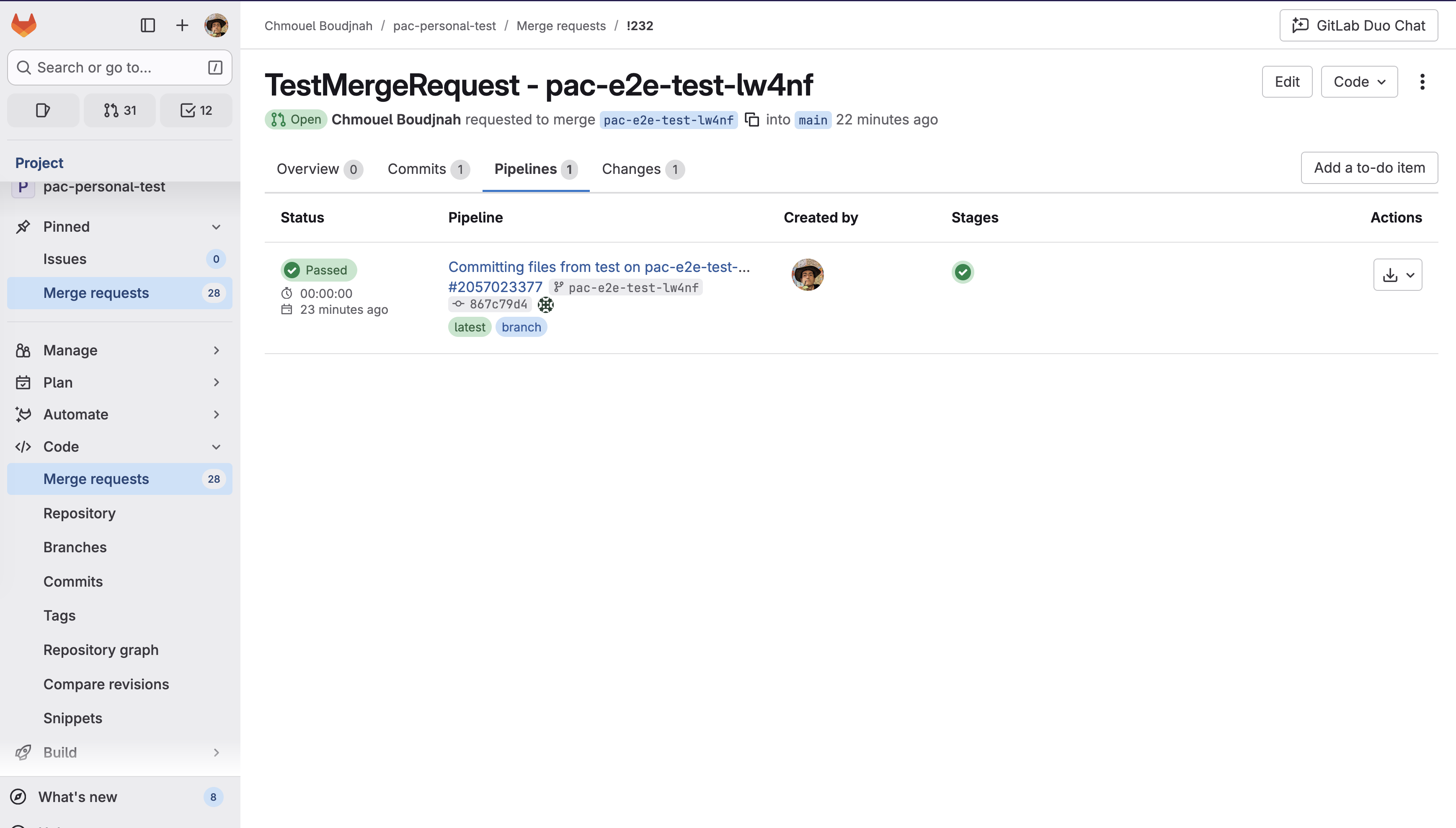
When status check reporting is unavailable, comments provide the same information (Comments show pipeline status, duration, and results).
Create a Repository and configure webhook
#
There are two ways to create the Repository and configure the webhook:
Create a Repository and configure webhook using the tkn pac tool
#
Use the
tkn pac create repocommand to configure a webhook and create theRepositoryCR.You need to have a personal access token created with the
apiscope.tkn pacwill use this token to configure the webhook, and add it to a secret in the cluster which will be used by the Pipelines-as-Code controller for accessing theRepository.
Below is the sample format for tkn pac create repo:
$ tkn pac create repo

? Enter the Git repository url (default: https://gitlab.com/repositories/project):
? Please enter the namespace where the pipeline should run (default: project-pipelines):
! Namespace project-pipelines is not found
? Would you like me to create the namespace project-pipelines? Yes
✓ Repository repositories-project has been created in project-pipelines namespace
✓ Setting up GitLab Webhook for Repository https://gitlab.com/repositories/project
? Please enter the project ID for the repository you want to be configured,
  project ID refers to an unique ID (e.g. 34405323) shown at the top of your GitLab project : 17103
👀 I have detected a controller url: https://pipelines-as-code-controller-openshift-pipelines.apps.awscl2.aws.ospqa.com
? Do you want me to use it? Yes
? Please enter the secret to configure the webhook for payload validation (default: lFjHIEcaGFlF):  lFjHIEcaGFlF
ℹ️ You now need to create a GitLab personal access token with `api` scope
ℹ️ Go to this URL to generate one https://gitlab.com/-/profile/personal_access_tokens, see https://is.gd/rOEo9B for documentation
? Please enter the GitLab access token:  **************************
? Please enter your GitLab API URL:  https://gitlab.com
✓ Webhook has been created on your repository
🔑 Webhook Secret repositories-project has been created in the project-pipelines namespace.
🔑 Repository CR repositories-project has been updated with webhook secret in the project-pipelines namespace
ℹ Directory .tekton has been created.
✓ A basic template has been created in /home/Go/src/gitlab.com/repositories/project/.tekton/pipelinerun.yaml, feel free to customize it.
ℹ You can test your pipeline by pushing the generated template to your git repository
Create a Repository and configure webhook manually
#
From the left navigation pane of your GitLab repository, go to Settings –> Webhooks tab.
Go to your project and click on Settings and Webhooks from the sidebar on the left.
Set the URL to the Pipelines-as-Code controller public URL. On OpenShift, you can get the public URL of the Pipelines-as-Code controller like this:
echo https://$(oc get route -n pipelines-as-code pipelines-as-code-controller -o jsonpath='{.spec.host}')Add a secret or generate a random one with this command:
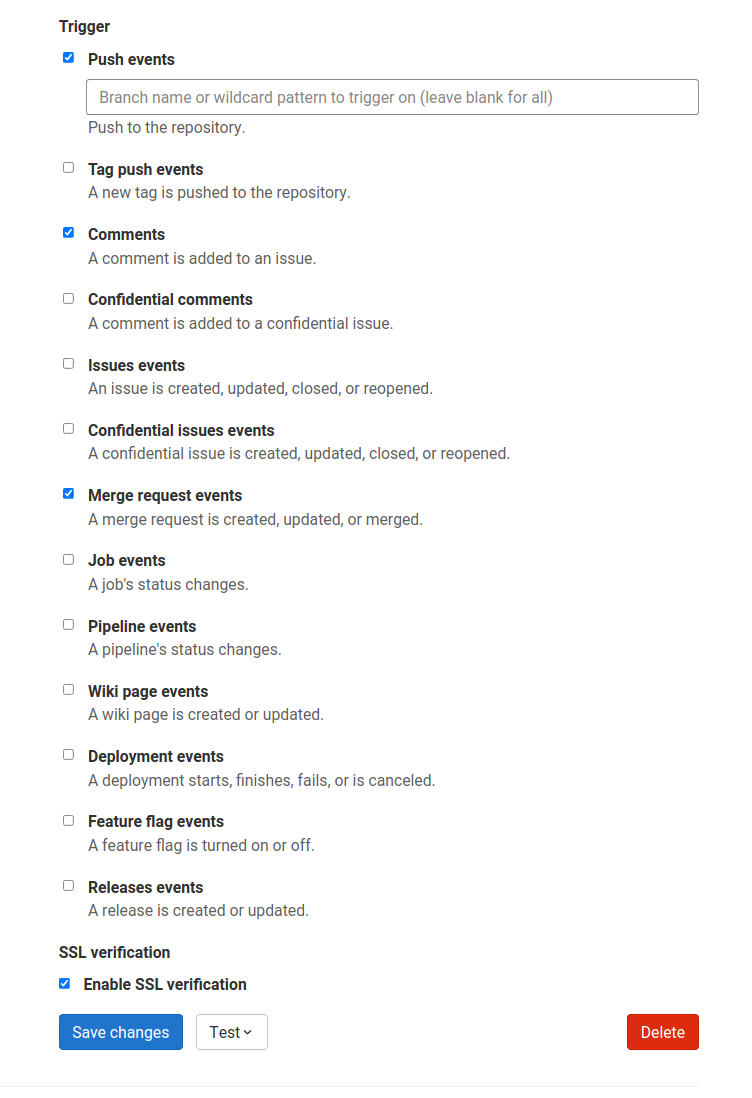
head -c 30 /dev/random | base64Refer to this screenshot on how to configure the Webhook.
The individual events to select are:
- Merge request Events
- Push Events
- Comments
- Tag push events
Click on Add webhook
You can now create a
Repository CRD. It will have:- A reference to a Kubernetes Secret containing the Personal token and another reference to a Kubernetes secret to validate the Webhook payload as set previously in your Webhook configuration.
Create the secret with the personal token and webhook secret in the
target-namespace(where you are planning to run your pipeline CI):kubectl -n target-namespace create secret generic gitlab-webhook-config \ --from-literal provider.token="TOKEN_AS_GENERATED_PREVIOUSLY" \ --from-literal webhook.secret="SECRET_AS_SET_IN_WEBHOOK_CONFIGURATION"Create the
RepositoryCRD with the secret field referencing it. For example:--- apiVersion: "pipelinesascode.tekton.dev/v1alpha1" kind: Repository metadata: name: my-repo namespace: target-namespace spec: url: "https://gitlab.com/group/project" git_provider: # url: "https://gitlab.example.com/ # Set this if you are using a private GitLab instance type: "gitlab" secret: name: "gitlab-webhook-config" # Set this if you have a different key in your secret # key: "provider.token" webhook_secret: name: "gitlab-webhook-config" # Set this if you have a different key in your secret # key: "webhook.secret"
Troubleshooting Fork Merge Requests #
Why does my fork MR show comments instead of status checks? #
Symptom: Pipeline status appears as MR comments, not in the “Pipelines” tab.
Root Cause: The GitLab token configured in your Repository CR lacks write access to the fork repository.
What Happened:
- PaC attempted to set status on fork → Failed (insufficient permissions)
- PaC attempted to set status on upstream → Failed (no CI pipeline on upstream for this commit)
- PaC fell back to MR comment → Succeeded ✓
This is working as designed. Comments provide the same pipeline information as status checks, just in a different format.
How can I get status checks instead of comments? #
Choose the option that fits your security model:
Option 1: Bot Account (Recommended for Production) #
Create a dedicated service account with minimal permissions:
- Create GitLab bot/service account
- Grant permissions:
- Read access: upstream and fork repositories
- Write access: fork repository (for status updates)
- CI pipeline access: upstream repository
- Generate personal access token with
apiscope for bot account - Use bot token in Repository CR secret
Advantages:
- Minimal permissions principle
- Clear audit trail (pipeline actions attributed to bot)
- No personal token rotation when team members change
Trade-off: Requires GitLab account administration
Option 2: Group-scoped Token #
Use a Group Access Token with api scope. This token will have access to all repositories within the group:
Advantages:
- Simple to set up
- Works for both fork and upstream
Trade-offs:
- Broader permission scope
- Personal token tied to individual user account
Option 3: Accept Comment-based Status (Default) #
Continue using project-scoped token with comment fallback:
Advantages:
- Most restrictive permissions
- No additional configuration needed
Trade-off: Status appears as comments instead of checks
I don’t want any comments, can I disable them? #
Yes. If you prefer not to see status comments on your Merge Requests (even if status checks fail), you can disable them completely by updating your Repository CR:
spec:
  settings:
    gitlab:
      comment_strategy: "disable_all"
See Repository CRD documentation for details.
Important: Even with correct token permissions, upstream status updates may fail if GitLab doesn’t create a pipeline entry for that commit in the upstream repository. GitLab only creates pipeline entries when CI actually runs in that project.
Can I use forks for development within a single repository? #
Yes! The restrictions only apply to cross-repository Merge Requests (fork → upstream).
If you’re working within a single repository (even a fork used as your primary repo):
- Token needs
apiscope for that repository - Status checks appear normally
- No permission issues expected
Where can I learn more about the fallback mechanism? #
See the detailed technical explanation and visual example in: Repository CRD - GitLab comment strategy
Notes #
Private instances are not automatically detected for GitLab yet, so you will need to specify the API URL under the spec
git_provider.url.If you want to override the API URL, then you can simply add it to the
spec.git_provider.urlfield.The
git_provider.secretkey cannot reference a secret in another namespace. Pipelines-as-Code always assumes that it will be in the same namespace where theRepositoryhas been created.
Add Webhook Secret #
- For an existing
Repository, if the webhook secret has been deleted (or you want to add a new webhook to project settings) for GitLab, use thetkn pac webhook addcommand to add a webhook to project repository settings, as well as update thewebhook.secretkey in the existingSecretobject without updating theRepository.
Below is the sample format for tkn pac webhook add:
$ tkn pac webhook add -n project-pipelines

✓ Setting up GitLab Webhook for Repository https://gitlab.com/repositories/project
? Please enter the project ID for the repository you want to be configured,
  project ID refers to an unique ID (e.g. 34405323) shown at the top of your GitLab project : 17103
👀 I have detected a controller url: https://pipelines-as-code-controller-openshift-pipelines.apps.awscl2.aws.ospqa.com
? Do you want me to use it? Yes
? Please enter the secret to configure the webhook for payload validation (default: TXArbGNDHTXU):  TXArbGNDHTXU
✓ Webhook has been created on your repository
🔑 Secret repositories-project has been updated with webhook secret in the project-pipelines namespace.
Note: If Repository exists in a namespace other than the default namespace, use tkn pac webhook add [-n namespace].
In the above example, Repository exists in the project-pipelines namespace rather than the default namespace; therefore
the webhook was added in the project-pipelines namespace.
Update Token #
There are two ways to update the provider token for the existing Repository:
Update using tkn pac CLI #
- Use the
tkn pac webhook update-tokencommand which will update the provider token for the existing Repository CR.
Below is the sample format for tkn pac webhook update-token:
$ tkn pac webhook update-token -n repo-pipelines

? Please enter your personal access token:  **************************
🔑 Secret repositories-project has been updated with new personal access token in the project-pipelines namespace.
Note: If Repository exists in a namespace other than the default namespace, use tkn pac webhook add [-n namespace].
In the above example, Repository exists in the project-pipelines namespace rather than the default namespace; therefore
the webhook was added in the project-pipelines namespace.
Update by changing Repository YAML or using kubectl patch command
#
When you have regenerated a new token, you must update it in the cluster.
For example, you can replace $NEW_TOKEN and $target_namespace with their respective values:
You can find the secret name in the Repository CR.
spec:
  git_provider:
    # url: "https://gitlab.example.com/ # Set this if you are using a private GitLab instance
    secret:
      name: "gitlab-webhook-config"
kubectl -n $target_namespace patch secret gitlab-webhook-config -p "{\"data\": {\"provider.token\": \"$(echo -n $NEW_TOKEN|base64 -w0)\"}}"